

InterChat
Verified12,500 servers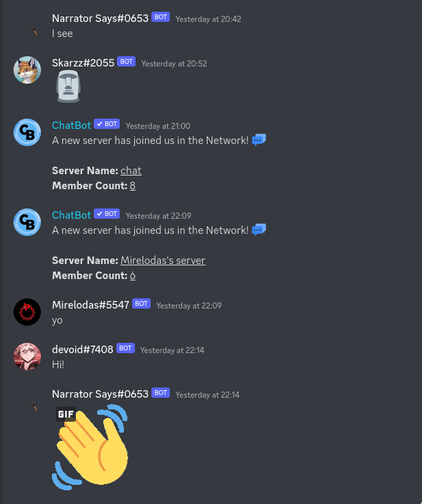
Welcome to InterChat
InterChat is a powerful and simple way for Discord servers to talk to each other. You can create a hub, connect channels, and keep your community safe with easy-to-use commands.
Why InterChat?
Increased Engagement:
By linking with other servers, your community gains access to a continuous, diverse conversation. This can help stimulate activity during slower periods, making the server feel more lively and interactive.
Wider Exposure & Growth:
InterChat acts as a bridge to other communities. This exposure can attract new members who might not have discovered your server otherwise, aiding in organic growth and community expansion.
Easy Moderation:
We provide a range of moderation tools to help keep your community safe. With features like anti-swear filters, logging, and more, you can maintain a positive environment for all members.
Simple Setup:
InterChat is designed to be user-friendly, with a straightforward setup process. Whether you're a beginner or an experienced user, you can quickly link your channel to a hub and start chatting with other servers.
- Customization Options:
You can personalize your hub with a name, description, icon, and banner. These features allow you to create a unique space that reflects your community's identity and values.
- Achievements, Rewards & Leaderboards:
InterChat offers a leaderboard and ranking system that showcases the most active and engaging servers. This feature can help your server stand out and attract new members who are looking for vibrant and dynamic communities.
...and a lot more!
Let's Get Started
Link a Channel to a Hub (to get a feel of how InterChat works)
If this is your first time using InterChat, start by linking your channel to a public hub to explore the features of the bot. This will help you understand how InterChat works and how it can benefit your community.
- Run
/setupin any channel (preferably a new, dedicated channel). - Click "Join a Hub" to connect your channel to the main hub quickly.
- Click the "It's my first time using InterChat" button.
- Click the desired channel to connect to the hub.
- Done! You are now connected to the hub.
Once connected, send a message in the channel. You will see InterChat start typing. This indicates that the message is being relayed to other servers connected to the hub.
No Response?
If there is no response from the hub, try joining a different hub that is more active. We recommend joining the officialInterChat Centralhub using/hub joinfor the best experience.
(OR) Create Your Own Hub
Start the Creation Process: Type
/hub createin the channel you want to create the hub in. This command will start the hub creation process.Enter Details: A form should pop up, asking you to enter the name and description of your hub. You can also upload an icon and banner to personalize your hub. Once entered, press "Submit".
All Done! Use
/hub invite create&/hub join: Now that your hub is created, how do you use it? Simple, create an invite using/hub invite create. Copy that invite and use it in/hub join.Continue Configuring your Hub *(optional but recommended)**: Move onto configuring your hub to set up anti-swear filters, logging, and other settings. This will help you maintain a safe and positive environment for your community.
Want to make your public hub?
Configure your hub now, rather than later. This will help you create a perfect environment for your hub's members.
Explore More Features
You can now explore the features of InterChat, such as sending messages, viewing leaderboards, and more. Continue to the next section of the docs to learn how to create your own hub.
- Leaderboards: View the most active servers using
/leaderboard. - Hubs: Learn how to create and manage hubs.
- Moderation: Explore moderation tools to keep your community safe.
Need Help? Want More?
- Support Server & Help: Join our support server for help and assistance.
- Feature Requests: Share your ideas and suggestions on our GitHub.
- Bug Reports: Report any bugs or issues you encounter on our GitHub or in our support server.
- Public Hub Finder: Browse public hubs to find active communities to join.
hub…
create – ✨ - Create an InterChat hub
config – 🛠 - Configure your hub. Rules, Logging, Team, AutoMod + many more features
delete – 🔥 - Delete a hub you own
manage – …
info – 📋 - View information & rules for a hub
leaderboard – 🏆 - View the leaderboard for a hub
discover – 🔍 - Discover public InterChat hubs
setup🛠 - Setup InterChat for your server
mod…
ban – 🔨 - Ban a user or server from a hub
mute – 🔇 - Mute a user or server from a hub
warn – ⚠ - Warn a user or server in a hub
unmute – 🔈 - Unmute a user or server from a hub
unban – 🟢 - Unban a user or server from a hub
panel – 🛠 - View the moderation panel for a hub
infractions – 📋 - View infractions users/servers have received in your hub
announce – 📢 - Create an announcement to be sent within your hub
delete_infraction – 🗑 - Delete an infraction (requires Manager+ permissions)
hub – …
help📚 - Explore InterChat commands with our new help system
connection…
add – 🚪 - Join an InterChat hub from a channel in this server
remove – 👋 - Leave an InterChat hub from a channel in this server
config – 🛠 - View and manage all hub connections in this server
swap_webhooks – 🔄 - Swap the primary and secondary webhooks for the current channel.
fix – 🔧 - Fix connection issues in this server
Similar Entertainment Bots
Discover other entertainment bots that might interest you



Popular Discord Bots
Check out the most popular bots in our directory



Discover More Bots
Explore our complete directory of Discord bots to find the perfect ones for your server