
Media Gallery
About multiserverbot
Get started
Install Quizcord Analytics in your server and allow it to view the channels where Quizcord posts quiz activity.
Set up faculty access
In Server Settings → Roles, create a faculty role and assign it to your faculty members.
A server administrator runs
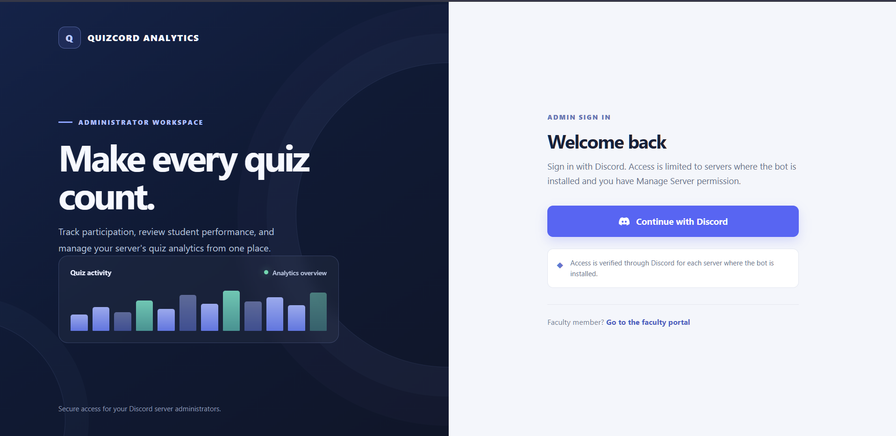
/set_faculty_roleand selects that role.The administrator signs in to the dashboard with Discord, opens Faculty passwords, enters the faculty member’s Discord user ID, and generates a temporary app password.
Share that password securely with the faculty member. It is displayed only once; resetting it replaces the previous password.
The faculty member signs in through the faculty portal using Discord, enters the temporary app password, and sets a new password.
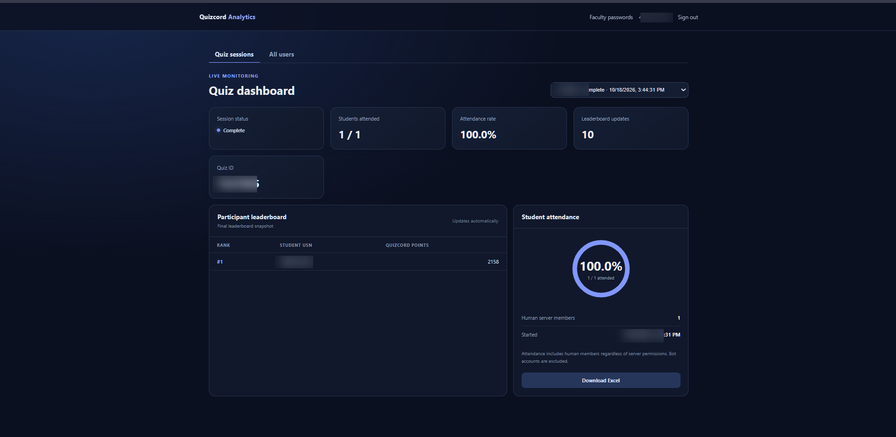
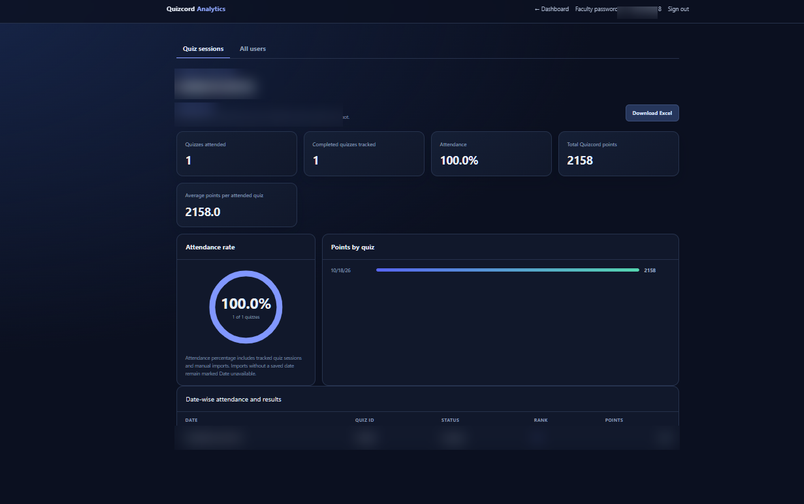
Faculty members can then use the dashboard to add students by USN and review their Quizcord attendance and performance. Faculty access is server-specific.
Available commands
/set_faculty_role— Configure which server role can use the faculty dashboard. Requires
Manage Server.
/map_student— Link a server member to a student identifier./process_quizcord— Manually import a Quizcord leaderboard./export_analytics— Download analytics
Popular Commands
| Command | Description |
|---|---|
/export_analytics | Download a private Excel workbook of student analytics. |
/set_faculty_role | Configure which server role can use the faculty dashboard. roleFaculty role; leave blank to disable faculty dashboard access |
Categories
Tags
Monetization
Languages
Similar Bots
Other similar bots you might like






Popular on UpBot
Trending bots in our directory